Successful CCA Registration (Manufacturing / Automotive)
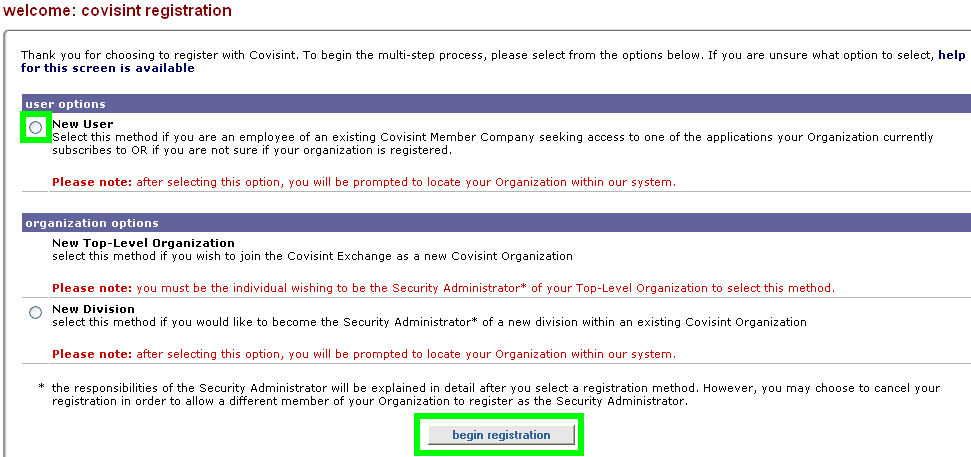
In the URL address bar, enter https://us.register.covisint.com/start.html The Covisint registration screen displays.
Select New User.
Click begin registration. The Find Organization screen displays.
Enter your organization name, or partial name, in the text box.
Click search. The Find Organization Search Results screen displays.

|
The |
|
If you cannot locate your organization in the search results, you can:
|
Select the radio button of the organization to which you belong and wish to register.
Click continue registration. The Enter User Information screen is displayed.
Enter user information as required, then click continue registration. The User Login Information screen is displayed.
Field: |
Description... |
User ID |
Create the user identification you wish to use each time you log in to Covisint. (The User ID must be at least 4 characters, and no more than 20 characters. If your company uses a standard convention for issuing User IDs for internal applications, you may wish to adhere to the same convention and select the same id for simplicity.) |
Password |
Create the password you wish to use each time you log in to Covisint. (This must follow the password rules, as described on the screen |
Re-enter Password |
Re-enter the password you created in the previous field. (This is done to confirm that you keyed in the password as you had intended). |
Challenge Question
|
A Challenge Question is used as a security measure if you ever forget your password and need to reset it. You will be asked to answer this challenge question. The answer must match that which you will key into the field below, “Challenge Answer”. |
Challenge Answer |
The Challenge Answer is used as a security measure if you ever forget your password and need to reset it. You will be asked to provide this answer to the challenge question you created in the field above. |
Click continue registration. The Select Service Package screen is displayed.
Select the check box of each service package you wish to request.
Click continue. The Review Request and Submit screen is displayed.
Review the accuracy of the request. If satisfied, click Submit.
RESULT:
You have successfully completed all steps necessary to register as a new user.


 icon indicates
the hierarchy location of the organization (whether it is the
top-level parent or child organization. Hover your cursor over
the icon for more information.
icon indicates
the hierarchy location of the organization (whether it is the
top-level parent or child organization. Hover your cursor over
the icon for more information.