Adding a Page via Control Panel

With appropriate roles, users are able to add pages to their organization's portal. If you wish to add a portal page for your organization to access, complete the steps below. The steps described here add a new tab to the top navigation link on the portal. If you wish to add a page to an existing tab or page, complete the steps for adding a child page.  


  1. From the Control Panel, click Site Pages. The Manage Pages screen is displayed. Here you can view the values in the Details tab. The values appear in the default language. For example, if you have set English (United States) as the default language, all the values appear in English.
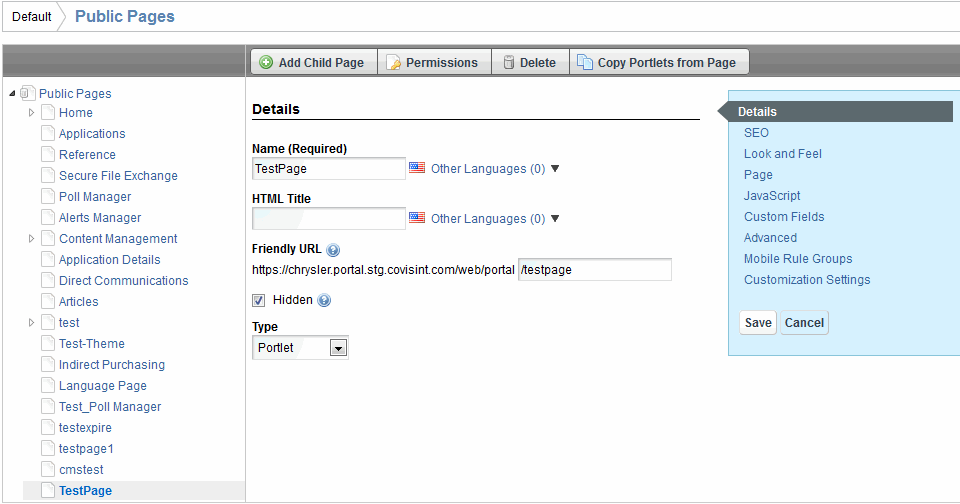
     

  2. Click on the top level item in the tree structure (the portal name). (Public Pages in this example).

  3. Click Add Page.
     

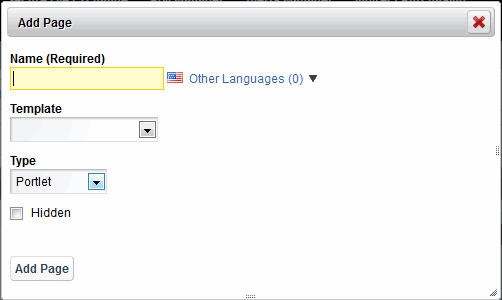
A good rule of thumb when adding a new page is to select "HIDDEN" so that only you can see the newly added page, preventing others from viewing the page until you have it configured properly. Once you have configured the page to display as you wish, disable the "HIDDEN" option if desired, and create links to the page from other pages.


  1. Key in the name of the New Page in the Name open text field. (The menu option will display the name you key into this field).

  1. If you wish for this page to remain hidden from view, enable the Hidden checkbox.

  2. Click Add Page. The new page is added to the tree structure.


  3. Click on the new page in the tree structure (TestPage in this example).


  4. Key in the HTML Title as you wish it to appear in the browser window in the open text field.

  5. Create the navigation link by determining the type of page (navigation) from the drop down menu. Types are defined as:

  6. In the Friendly URL field, key in the name of the remainder of the URL preceded by a /. The text keyed in to this field will appear in the URL. In this example, the Friendly URL added as: "/testpage"

  7. Perform one or more of the following:

If you selected page type:

Then...

URL

Key in the URL to which you wish to create a link for this page in the open text box.

Link to Page

Select the page existing within the portal that you wish to link from the drop down menu.


  1. Click Save. The screen refreshes, and the new page is added.  


Results

You have successfully added a page.