Navigate to the portlet for which you wish to configure the look and feel. This example uses the My Sites portlet.
Click
Options. 
Click Look and feel.
Support for Portal Content Publishers
Complete the following steps to change the look and feel of a portlet. This example uses the Training Portlet. Changes may include adding a border, changing the background color, font, etc.
Navigate to the portlet for which you wish to configure the look and feel. This example uses the My Sites portlet.
Click
Options.
Click Look and feel.
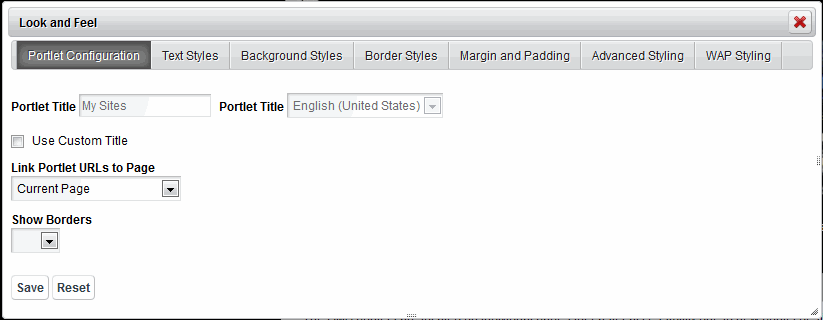
Perform one or more of the following:
If you wish to change the portlet's... |
Then... |
|
|
|
|
|
|
|
|
|
Results
You have successfully managed the look and feel of a portlet.