Searching for a Patient Record
To access and use many of the DocSite functions, you must first select a patient record. Begin by searching for the patient using the Patient Search function, which is conveniently located on the left side of the Home and most of the patient data screens in DocSite.
NOTE: A user's practice in DocSite may be designated as either a "Practice site" or as a "Community site." If you are a user assigned to a "Practice site" you can only search and manage patient data associated with that practice. However, you can be assigned to more than one practice. If you are a user assigned to a "Community site" you can search and manage patient data associated with all of the practices within that designated community (e.g., practices associated with a hospital system or are members of a Health Information Exchange (HIE) community.
|

|
IMPORTANT: If searching for a patient:
-
-
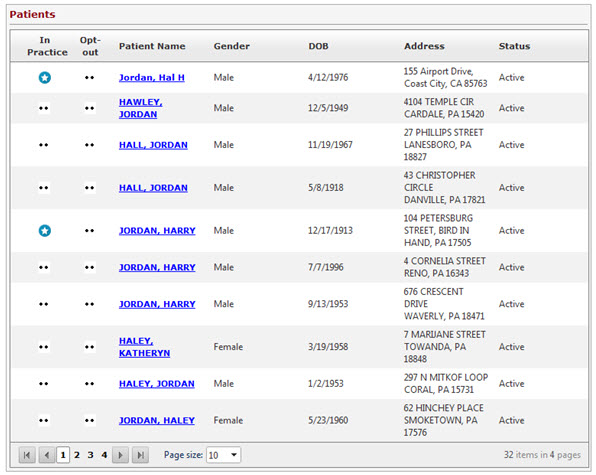
If the patient has opted-out for sharing his/her data within the practice’s Community, this will be indicated on the search results list in the “Opt out” column.
-
If a patient “opts-out” for sharing his/her data within the practice’s Community, you will be unable to retrieve and view the patient’s medical history. Also, if the person is not a patient in your practice the patient information will be grayed out
-
-
If you select a patient within the Community but not associated with your practice, DocSite prompts you for attestation of consent. Once you select the reason for requesting access, DocSite retrieves clinical data from all sources and displays the results.
-
If you select a patient within the Community that is associated with your practice, DocSite performs the search and retrieves clinical data from all sources and displays the results. No attestation of consent is required.
|
To search for a patient record:
-
If Patient Search is not visible on the screen, click Home on the menu bar. Patient Search will display on the left side of the screen.

-
In the Patient Search section, enter or select the following in at least one field:
-
Last Name: Enter one or more letters of the last name and click Search below the last search field.
IMPORTANT! If searching for a patient within your HIE Community, you must enter the complete last name.
-
First Name: Enter one or more letters of the first name and click Search.
-
DOB: Enter the complete date of birth (mm/dd/yyyy) and click Search.
-
MRN: Enter the complete medical record number and click Search.
-
Status: Select a filter option, which filters patients by the following status: Active, Inactive, Deceased, or All.
-
Search All Sites: Click the check box if you want to search all the practice sites for which you have access. If “Search All Sites” is not selected, the application only searches for patients within your practice.
NOTE: The Search All Sites field only displays if you are associated with more than one practice site.
-
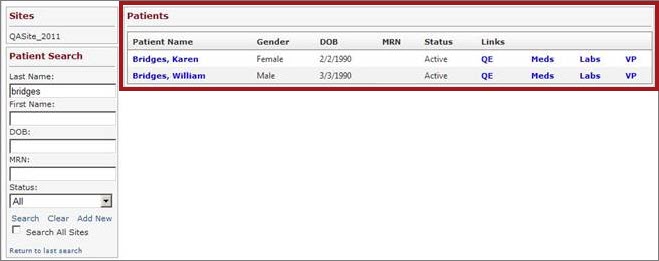
Click Search. The search results display to the right of the search box.
-
Clicking the patient name will take you to the Patient Information screen.
Below is an example of the patient search results for a Practice site. Only patients associated with that site (practice) will display.
Below is an example of the patient search results for a Community site. A star in the "In Practice" column indicates a patient is associated with your practice. A star in the “Opt out” column indicates the patient has opted-out for sharing his/her data within the practice’s Community.
Result
The Patient Search feature searches for the patient and displays the search results.