Help for SFX - Secure File Exchange
|
This task can only be performed by an SFX Administrator. Caution: Changes made to the Repository Settings impact everything from the top-level Home folder down. For example, if you add a user or group to the Administrator role, that user or group becomes an Administrator for the entire SFX instance. |
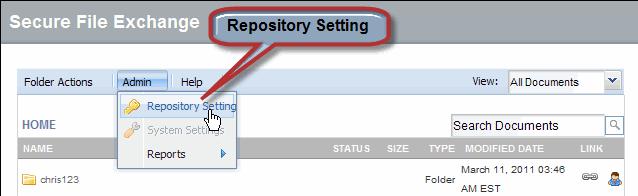
From the Admin menu, click Repository Settings.
Click
next to Add Members
in the role type to which you wish to add users. The User Directory
window displays.
Search for and Select the people you want to add to the role for which you clicked Add Members.
Type the name (or partial name) of the user or group in the Type in name field.
If you want to restrict your search to individual users, click the Include drop-down arrow and select Users.
Click Find. The screen refreshes, and the search results display.
Select the check box of each user or group you want to add to the selected SFX role. Checked users display in the Selected People list.
Click OK. The User Directory window closes and the users you added display in the appropriate role section under REPOSITORY CONFIGURATION SETTINGS.
Repeat steps 2 and 3 for each role to which you want to add users.
Click OK. The SFX HOME page displays in your portal.
RESULT:
You have successfully added users to roles in SFX