This task can only be performed by an SFX Administrator.
When you assign a fax number, it is removed from the list of available fax numbers.
Help for SFX - Secure File Exchange
|
This task can only be performed by an SFX Administrator. When you assign a fax number, it is removed from the list of available fax numbers. |
|
If you see 'no fax' in the Fax Number drop down menu, one of the following conditions exists:
Contact your Covisint sales representative for details. |
Navigate to the folder to which you want to assign a fax number. (How do I navigate to a file or folder?)
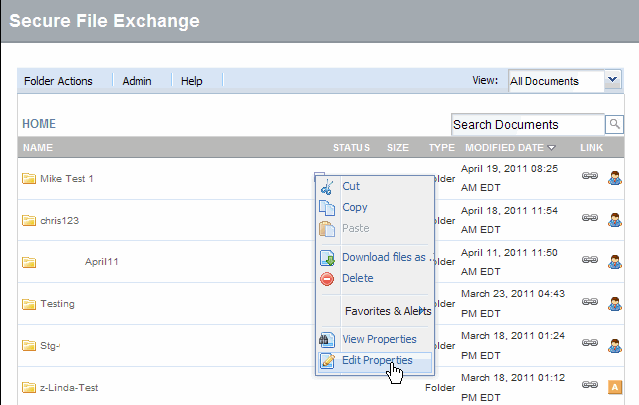
Click the drop-down arrow at the far right of the folder name.
Click Edit Properties. The Edit Properties fields display.
From the Fax number drop down menu, select the fax number you want to assign to this folder.
Optional: Edit the folder name to include the fax number assigned to this folder. We recommend that you include the fax number assigned to the folder in this description field.
Optional: Edit the description of the folder to include the fax number assigned to this folder. We recommend that you include the fax number in this description field.
Edit approval requirements as required. Refer to Creating a Folder for approval requirement details and work steps.
Some users can edit the owner of the file. (Refer to Changing File or Folder Owners for detailed work steps.
Click OK.
Optional: Modify access permissions to the file or folder by following the steps in the section entitled Modifying Access Rights.
RESULT:
You have successfully a assigned a fax number to an existing folder. Items faxed to this folder are stored in .PDF format. If approval is required on this folder, the faxed item will remain in pending state until approval has been granted.