Adding New Users to Supplier Connection

The user must have already requested and been approved for the Supplier Connection application.


  1. Log in to Supplier Connection.


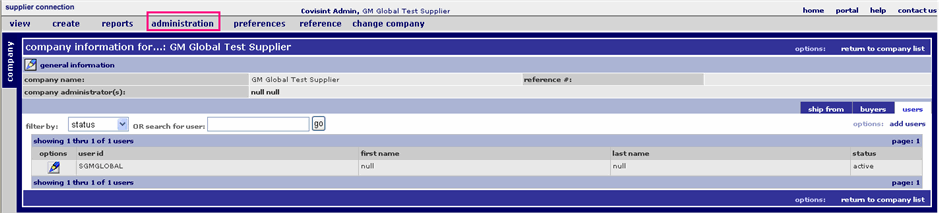
  2. From the administration drop down menu, click administer company.  The Company Information screen is displayed.
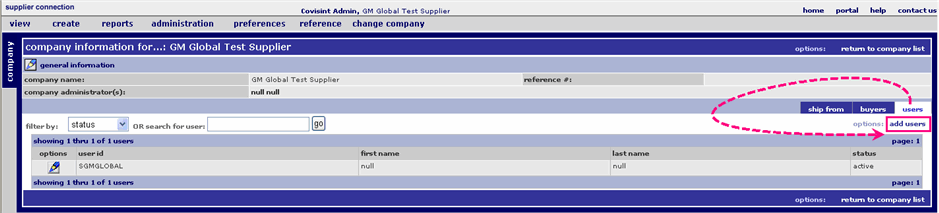


  3. Click users tab.

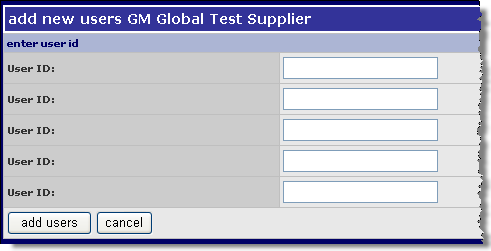
  4. Click add users.  The add new users screen is displayed.
     

    Add New User Screen


    You can only add users into Supplier Connection that meet the following criteria:  


    Register for a User ID at:  http://us.register.covisint.com/start.html The self registration request for a new User ID will be routed to your internal Security Administrator for approval.


  1. Key in one portal user id in each open text field.

  2. Click add users.  The screen refreshes, and each user is added to the list.  

  3. Click in the options column next to the user id you added.  The edit user info screen is displayed.

  1. Select active in the status drop down menu.

  2. Select yes from the company admin drop down menu if you wish to assign the Administrator role to the user.


    Ignore all other options on this screen.


  1. Scroll to the bottom of the screen and click Save.


  2. Next, assign the user to ship-from locations.


RESULT:

You have successfully added new users to Supplier Connection.  Next, assign users to ship-from locations.