Help for Supplier Connection - SUPPLIER GUIDE
At times, skeleton Ship-From location(s) are created by your customer
for each shipping location for which Documents are issued. When the ship-from
location has not yet been created, complete the following steps to create
a ship-from location.
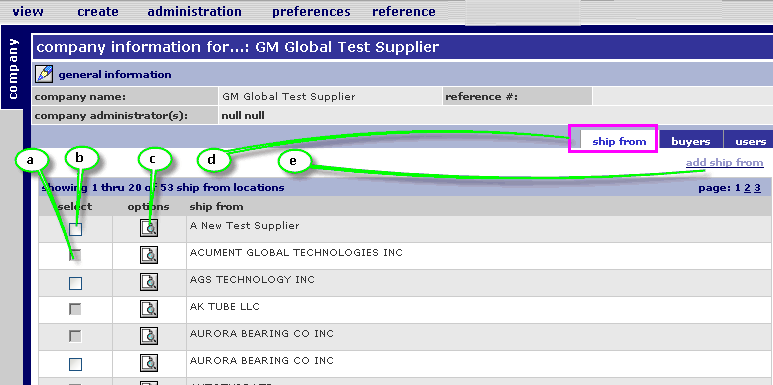
Navigate to the view screen of the ship-from location. Refer to the section entitled Viewing Ship-From Locations.
Click add ship from in the upper right corner of the screen (e).
Key in required fields as follows: (Required fields are identified with red font and an asterisk)
In the location name field, key in the name of the new ship-from location.
In the location administration section, identify the location administrator. If you wish to act as the location administrator, enable the yes radio button. If you do not wish to be assigned as a location administrator, enable the no radio button, then select the user to be assigned to that role from the drop down menu.
Key in additional fields as desired.
Scroll to the bottom of the screen and click Save. The screen refreshes, and the ship-from location is added to the list.
Click cancel to return to administration screen.
RESULT:
You have successfully added a ship-from location. Next, assign users to the location.