 Show me how >>>
Help for PHI Audit
Show me how >>>Create a User audit when you want to audit PHI data actions performed by a selected user.
This procedure assumes you have logged in to your healthcare community and navigated to the PHI Audit Dashboard window. For details, refer to Access PHI Audit.
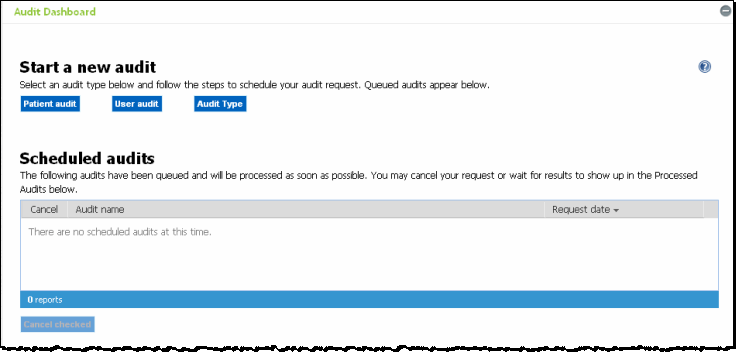
Perform the following steps to create a user PHI Audit:
On the PHI Audit Dashboard
window, click User audit.
Step 1 of the User Audit Wizard
popup displays the list of available users within your organization.

Select the user you want to audit.
Click Select admin and continue. Step
2 of the User Audit Wizard
popup displays.
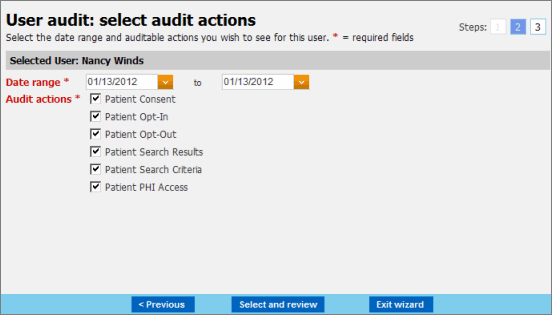
Specify a date range for the audit. Note: The date range must be no more than 30 days.
Enter dates in the required format, or
Click the  drop down
arrow to display a calendar from which you can select a date.
drop down
arrow to display a calendar from which you can select a date.
Select the Audit actions you want to include in the PHI user data audit. For more information, refer to PHI Audit Overview.
Click Select and review.
Step 3 of the User Audit Wizard
popup displays.
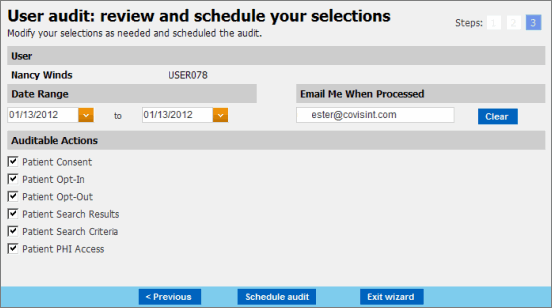
Review your audit's date range and Audit actions criteria, and modify as required.
Optional - modify the Email Me When Processed field.
If you want to use the default email address for notification emails, leave the field as-is.
If you want the notification email to go to a different email address, click Clear, then enter the alternate email address.
Click Schedule audit.
The audit is scheduled, and a success window, similar to the following
displays.
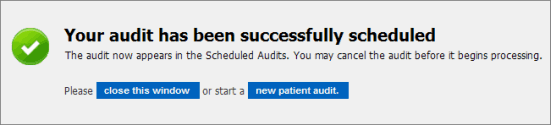
Click close this window. The audit wizard window closes and you are returned to the PHI Audit Dashboard window.
result
You have successfully created and scheduled a PHI user data audit.