 Click
here to view a video introduction to PHI Audit >>>
Click
here to view a video introduction to PHI Audit >>>Help for PHI Audit
Click
here to view a video introduction to PHI Audit >>>
|
Only community users with selected roles can access PHI Audit. For questions about PHI Audit access, contact your community administrator. |
The PHI Audit application enables you to audit:
Access to operations on a selected patient's data
A selected user's access to, and operations on, patient data
The purpose of the audit tool is to review users’ accesses of Protected Health Information to verify accesses are in line with HIPAA requirements.
PHI Audit allows you to:
Audit a specific patient's data to retrieve information about auditable actions that have been performed on the data.
Audit a specific user's actions to determine whose data they have accessed, and which auditable actions they performed on the data.
PHI Audit retrieves information associated with actions described in the following table. You can select one or more actions when you create an audit.
Audit Type |
Audited Action |
Description |
Patient |
Patient Search Results |
Includes the search results from which the patient was selected. |
Patient |
Patient Consent |
Displays the consent selection that was selected for access to patient data. |
Patient |
Patient Opt In |
Indicates if the Opt In setting was changed. |
Patient |
Patient Opt Out |
Indicates if the Opt Out setting was changed. |
Patient |
Patient PHI Access |
Displays the viewed patient data. |
User |
Patient Consent |
Displays the consent selection the user selected to access patient data. |
User |
Patient Search Criteria |
Audits the criteria used to search for a patient. |
User |
Patient Search Results |
Audits the search results from which the user selected a patient. |
User |
Patient Opt In |
Indicates if the user changed the Opt In setting. |
User |
Patient Opt Out |
Indicates if the user changed the Opt Out setting. |
User |
Patient PHI Access |
Indicates which tabs of patient data the user accessed. |
|
Important: As you perform tasks with the PHI Audit Dashboard, use the application's buttons to navigate. Do not use your browser's back button. If you use your browser's back button for navigation, you may be returned to your healthcare community home page.
Examples of application buttons:
|
You can quickly initiate audit tasks from the Audit Dashboard window. To access tasks, scroll up or down the window as required to reach the section that supports the tasks you want to perform.
In sections that display information in columns, you can sort the information by clicking column headings. Multiple clicks on a heading toggle the sort order between ascending and descending sequence.
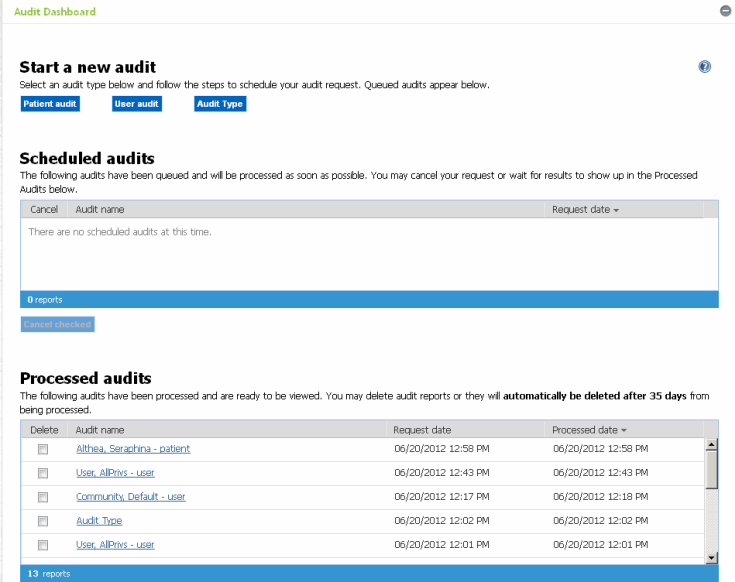
The Start a new audit section provides access to two wizards used to create patient or user audits. For details, refer to:
The Scheduled audits section allows you to view or cancel audits that have not been submitted for system processing. For details, refer to View or Cancel Scheduled Audits.
The Processed audits section allows you to view and delete processed audits. For details, refer to:


