Show me how >>>
Help for PHI Audit
Show me how >>>View Processed audits when you want to:
Review the list of audits that have been processed.
View audit details.
This procedure assumes you have logged in to your healthcare community and navigated to the PHI Audit Dashboard window. For details, refer to Access PHI Audit.
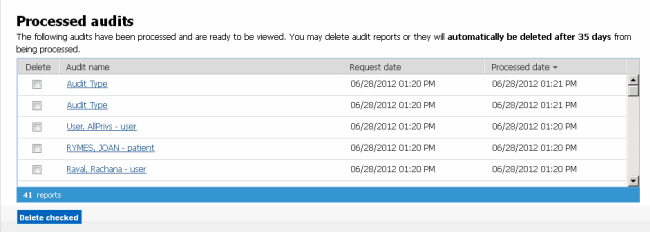
Perform the following steps to view Processed audits:
On the PHI Audit Dashboard window, scroll down the screen as required to view the Processed audits section.
Sort the audit list as required by clicking column headings. For details, refer to Navigating. the PHI Audit Dashboard.
Click the Audit name link of the audit whose information you want to view. The Audit Details view displays in the Audit Dashboard window. The fields available in the Audit Details view are dependent upon the audit type:
An example Patient Audit excerpt is shown below.

[Optional] If you want to see more information about an audit action, click its Details button. The action's details display in a new window.
|
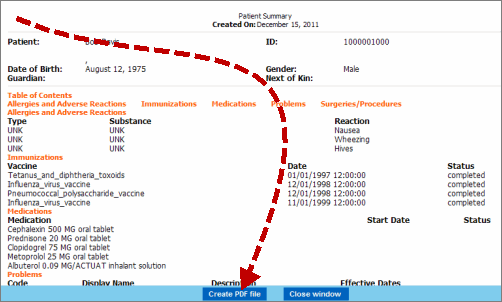
[Optional] Click Create PDF file to save the audit action details as a PDF.
|
When you are finished viewing audit action details, click Back to the audit details page. The list of audit details displays in the Audit Dashboard window.
When you are finished viewing audit details, click Back to the main audit page. The PHI Audit Dashboard page displays.
result
You have successfully viewed a PHI audit.